Members
How to create and maintain logins for both external and internal users in the webshop.
Member list
Top navigation
.png)
Top navigations and functionalities
1 Create new member
Press the "+" and fill out the 5 required fields. Search and select the account number associated with the user from the presented dropdown-list. Press "Add member".
If you need to add additional information or make changes to the user account later, you can search for the specific member again and continue the process.
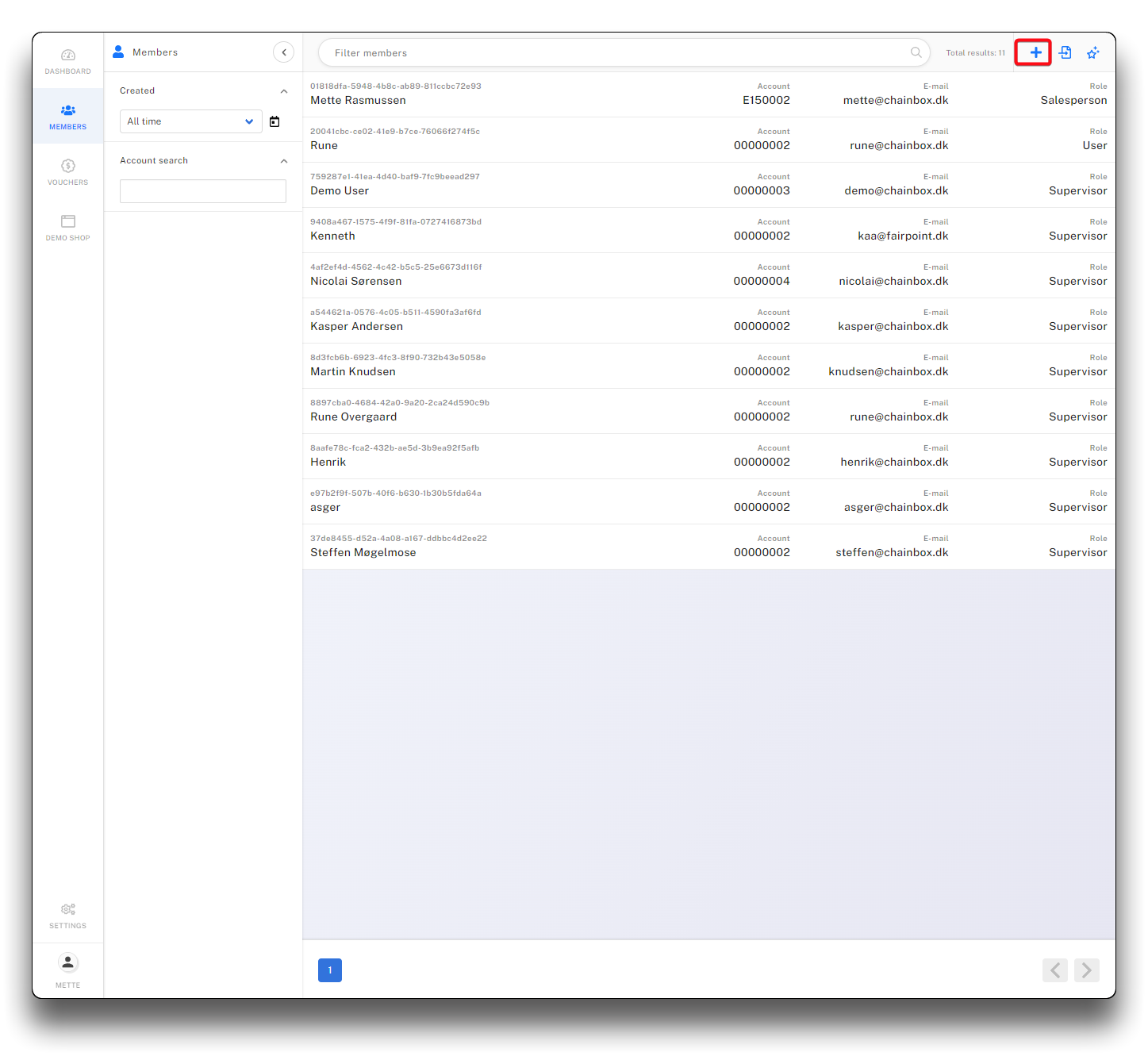
Add new member - step 1
.png)
Add new member - step 2
Warning
Please note! The system allows creation of two members with same account, email and password. This will however cause login to fail.
2 CSV-import multiple new members
Press the import-icon, and copy a csv- or excel file with the following fields/columns:
Account no, Email, Contact name, Password (optional), Role (optional but if left blank "User" will be the assigned role.
.png)
CSV-import of new members - step 1
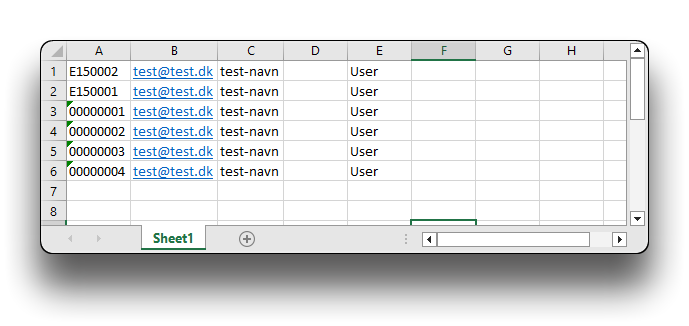
CSV-import of new members - step 2
.png)
CSV-import of new members - step 3
.png)
CSV-import of new members - step 4
Warning
Note! The import will not allow the same email to be imported twice on the same account. You will get the message "There was an error"
Info
If password is left blank, instruct your user to go to webshop and use the "Reset password" function
3 CSV-import multiple wishlists
Press the import icon and copy a csv- or excel file with the following fields/columns:
E-mail, label (name of wishlist, if doesn't exist it will be created), Productid, Quantity
Click "Import"
.png)
CSV-import of wishlist - step 1
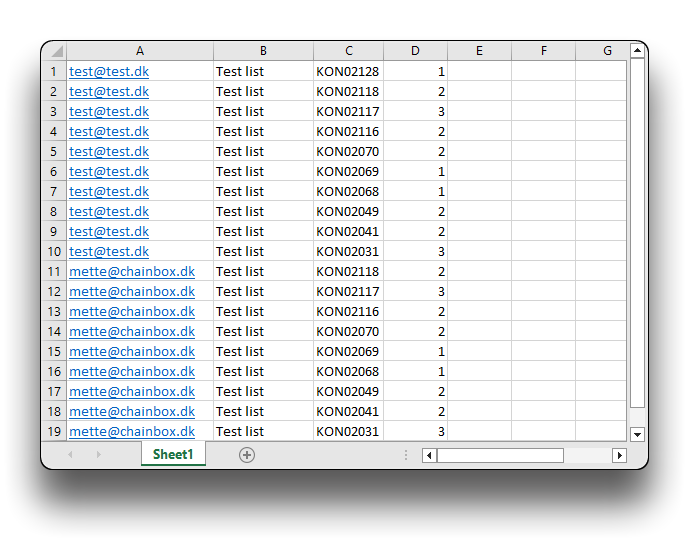
CSV-import of wishlist - step 2
.png)
Result in Webshop
Info
If the product you are importing already exists on the existing wishlist (label) the qty on the new import will overwrite the existing qty.
Searching members
3 searchfilters are available for member searching
Created
Choose the periode of creation you are searching for
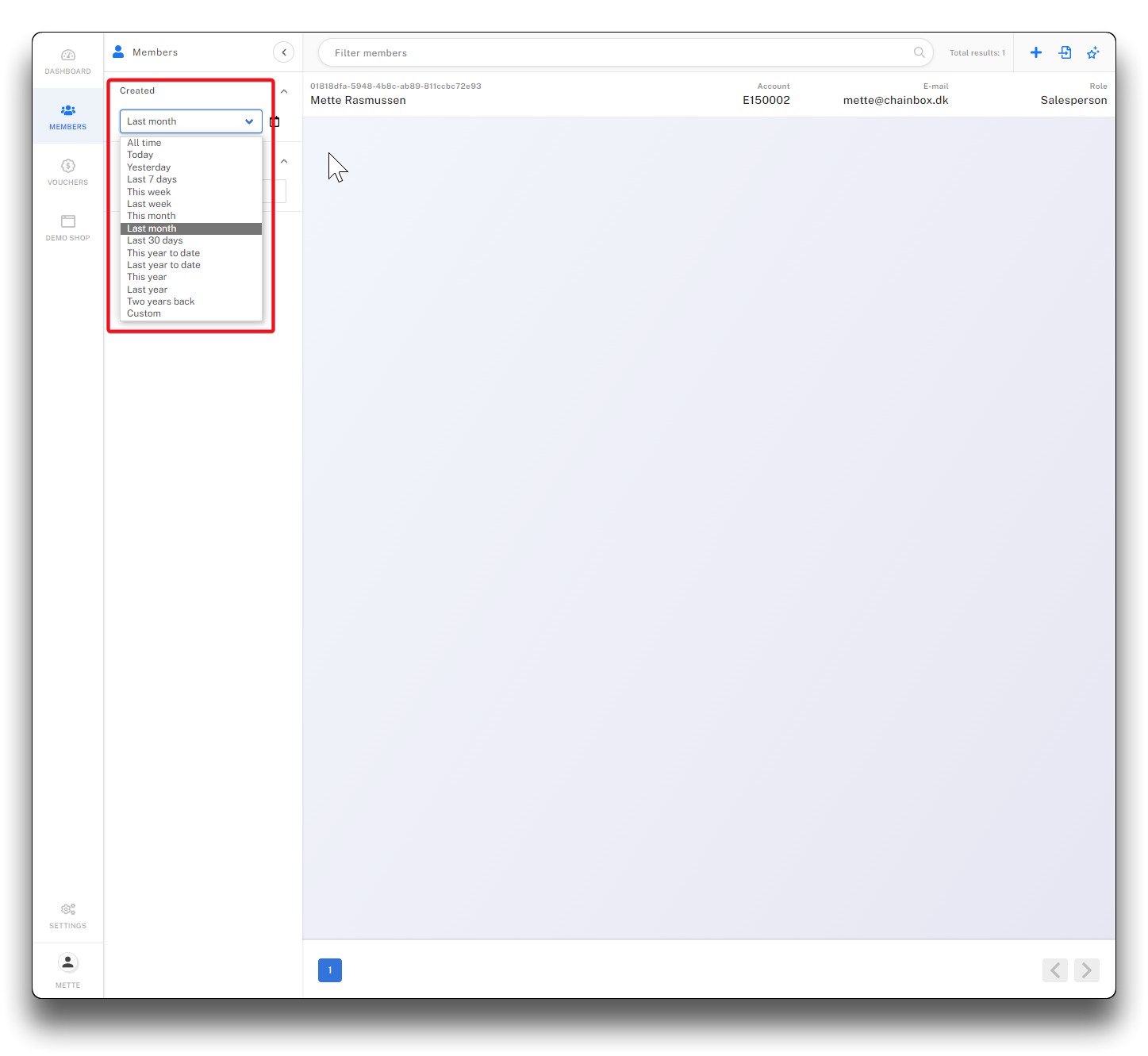
Search by created period
Filter members
Type part or whole of name, account or email. Result will appear as you type. The search is not limited to "starting with"
.png)
Search by filter members
Account search
Type whole or part of accountnumber. Result will appear as you type
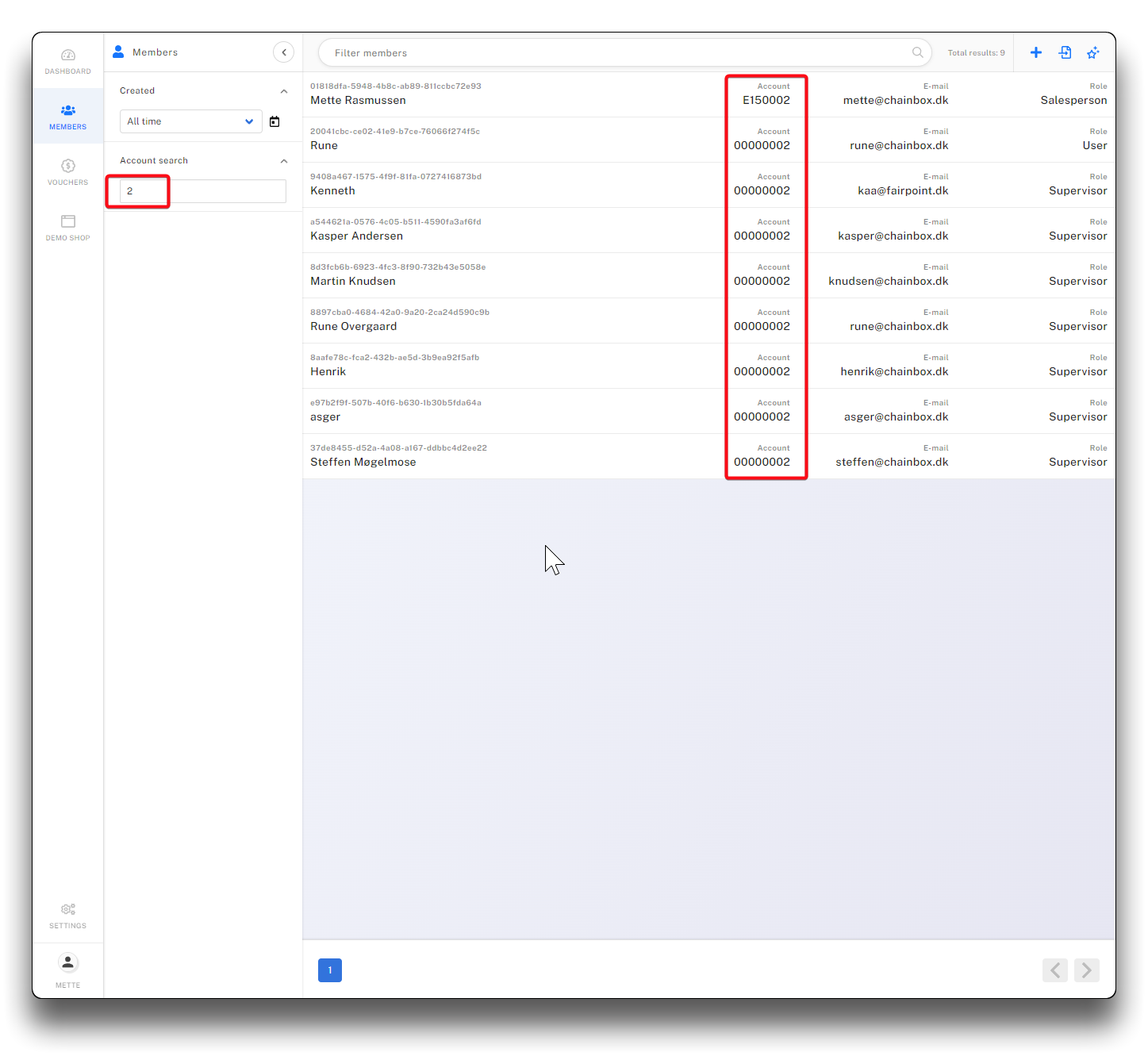
Search by account number
Create date and last login search
As of version 6.0.8 it is possible to filter members by create date and last login date. This is accessible from the sidebar and, see screenshot below. Create date and last login is also visible in the member list.
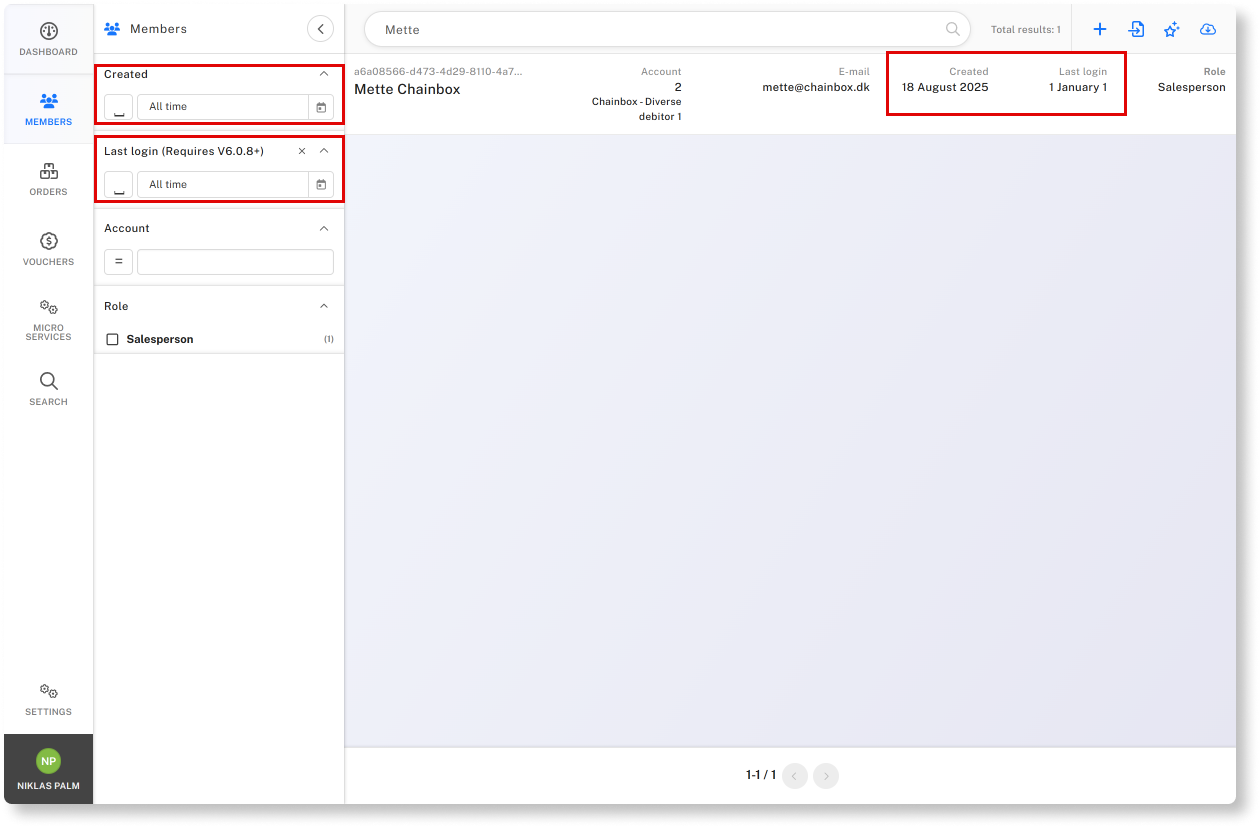
Create date and last login filter
Member details
Overview
Top navigation
.png)
Top navigation icons explained
1 Press the key-icon to reset a users password, enter the new password twice.
.png)
Change password on user
2 Press the bin-icon to delete user. The user will no longer have access to login on the webshop.
3 Press the edit-icon to edit user information
Name
The member-name will appear in the webshop as "Logged in as" and also serves identification purposes in "Members" for the administrator of passwords. It will not appear on the order-confirmation, the customername from the ERP-system will show instead.
.png)
Member name shown on webshop
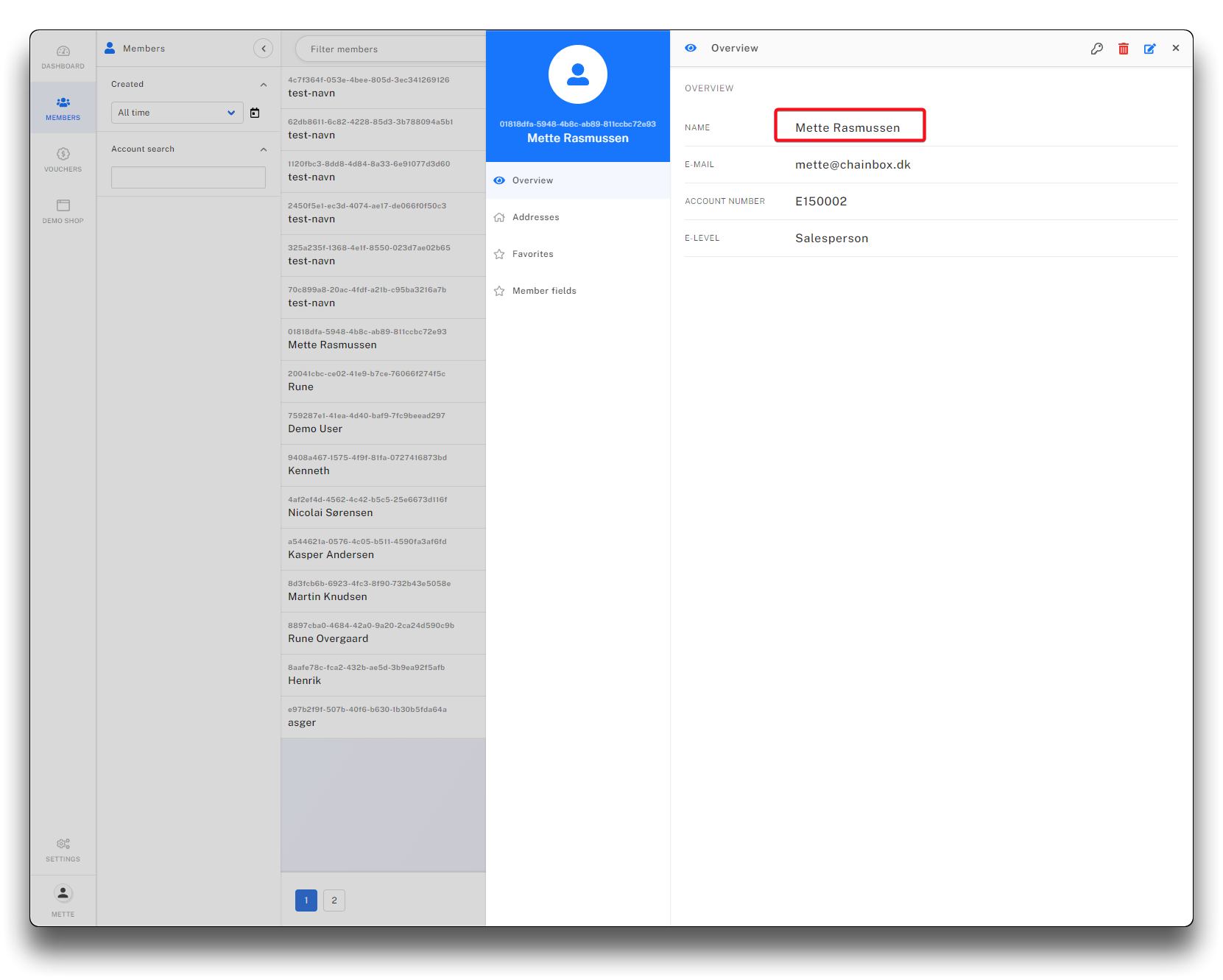
Membername in Members
This is the email that receives the order confirmation when placing an order.
Account number
The account number must exist in the ERP-system. Begin typing and choose from search options
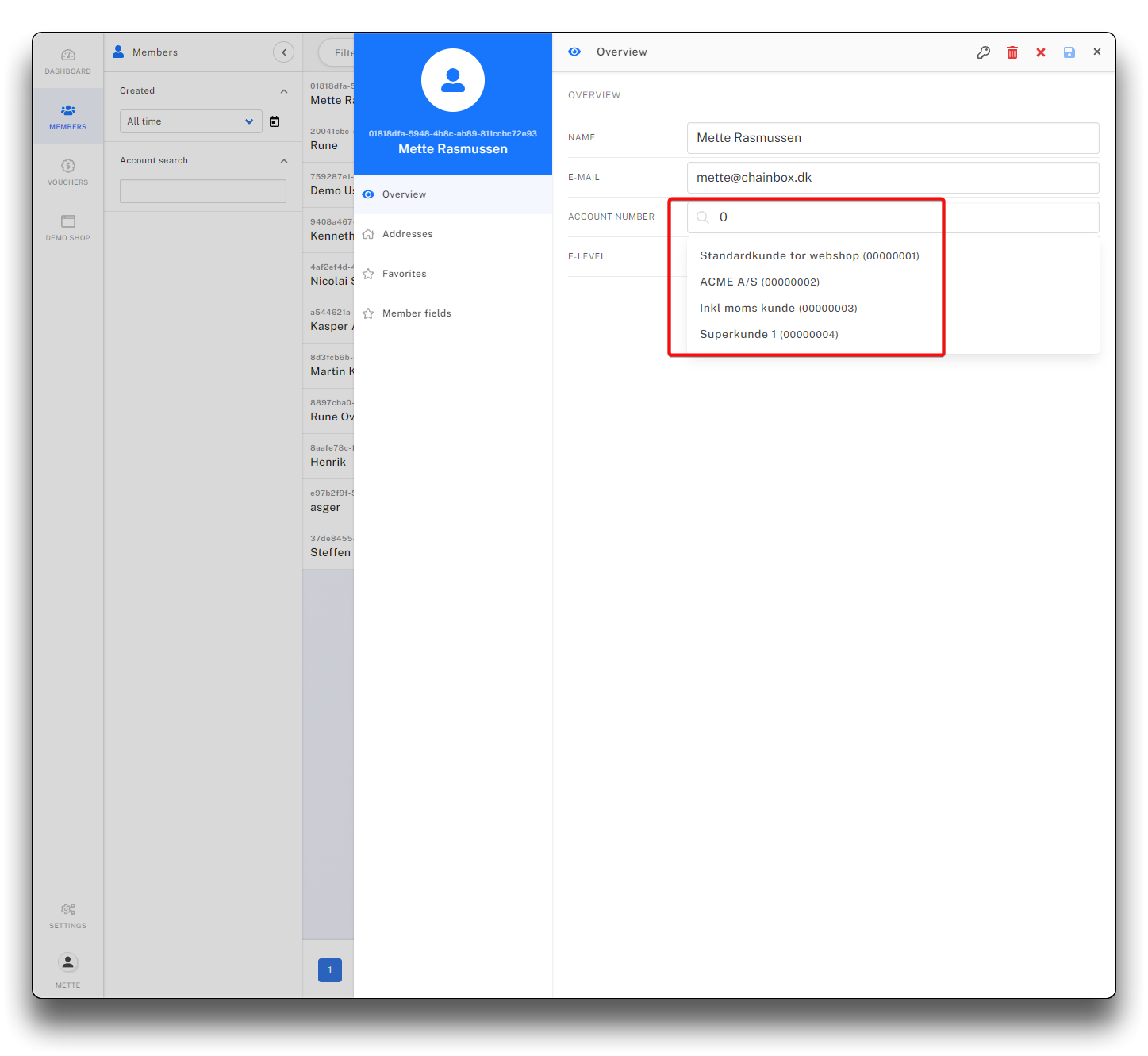
Account number search from ERP-system
E-level
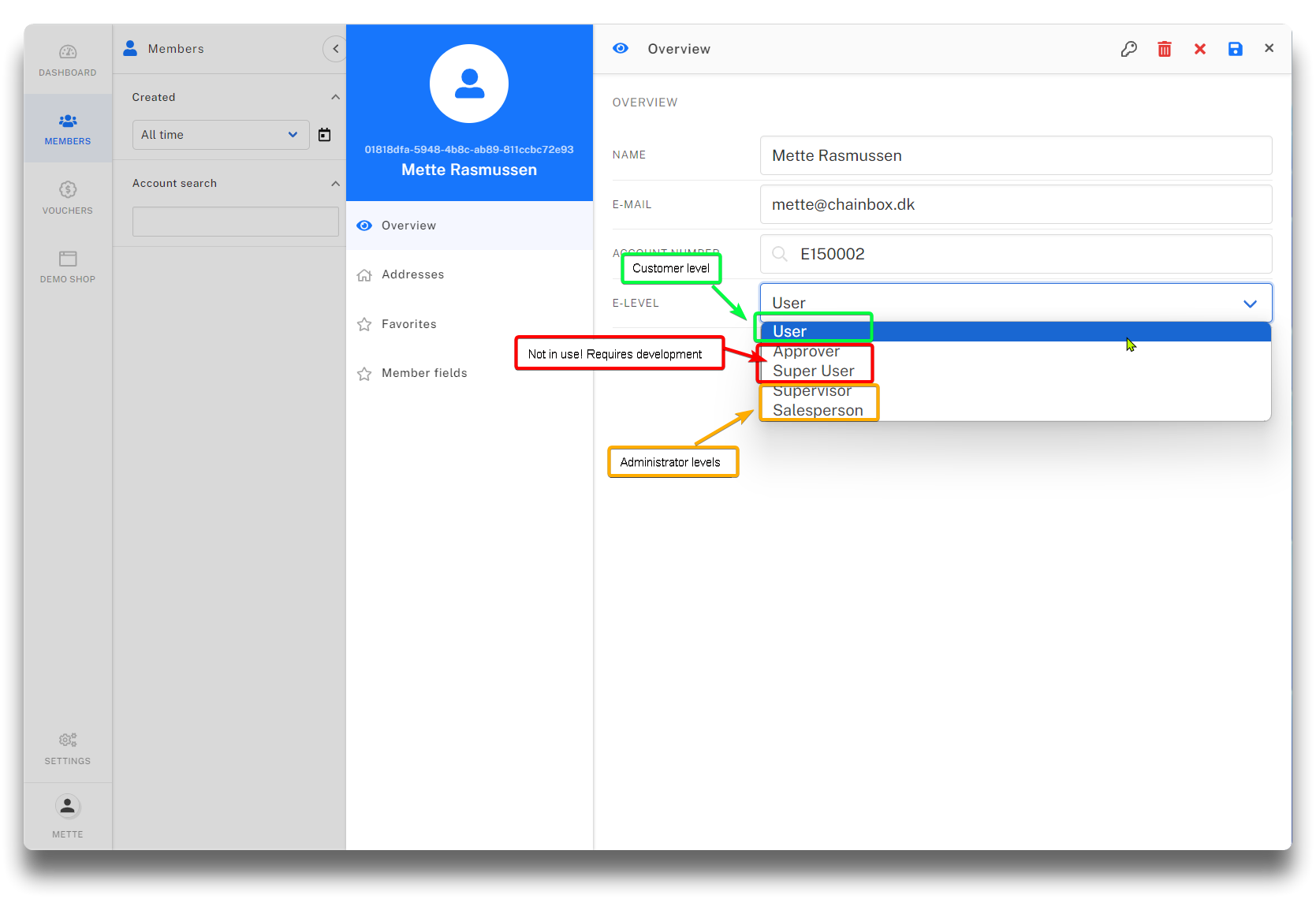
Available E-levels for users
For customers, choose E-level "User".
Warning
User roles "Approver" and "Super User" must not be used, unless specific functionality have been specified and developed by Chainbox.
E-level for internal users
Supervisor
Allows you to buy on behalf of any customer and gives access to webshop front end. This access is given to internal users that actively work with the settings and functions of the webshop.
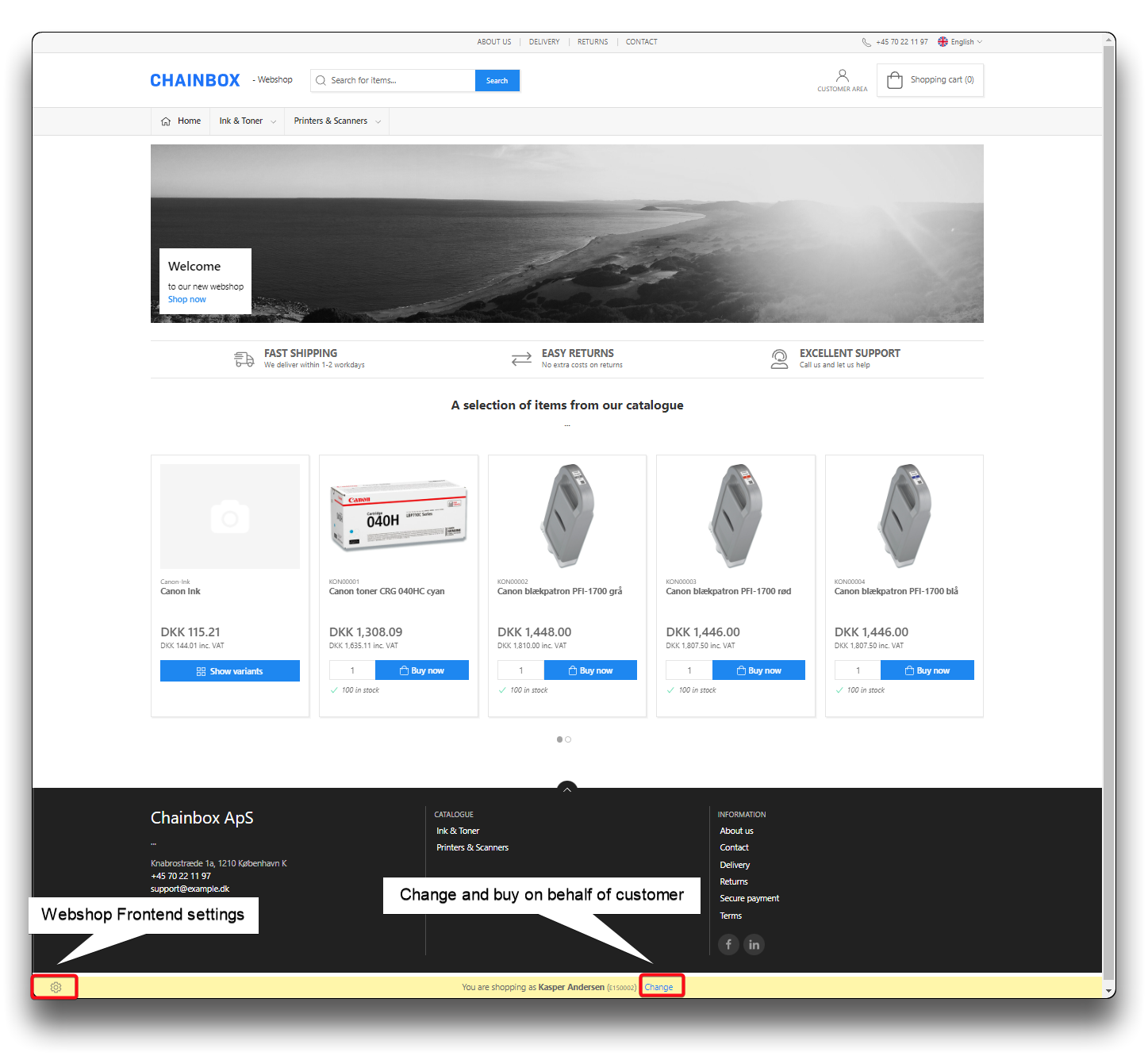
E-level Superuser
Salesperson
Allows you to buy on behalf of any customer.
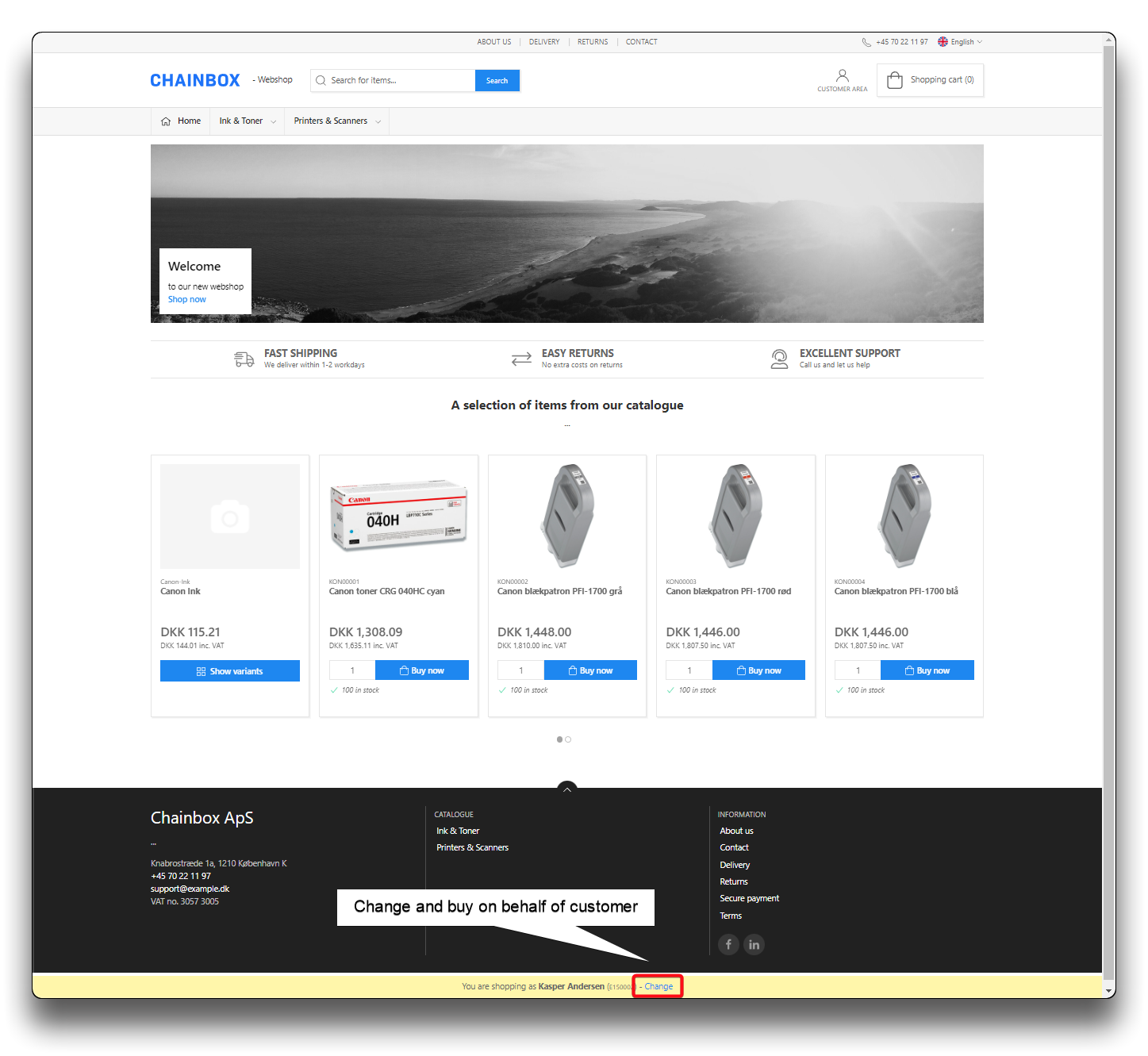
E-level Salesperson
Addresses
Please leave blank. The customers addressinformation from the ERP-system will default as address on orders.
Only in special scenarios could it be relevant to type an individual adress here. Please consult Chainbox to understand the ramifications before taking this field into use.
.png)
Adresses on Member - please leave blank
Favorites
The customers wishlist will show here, and can be amended if needed.
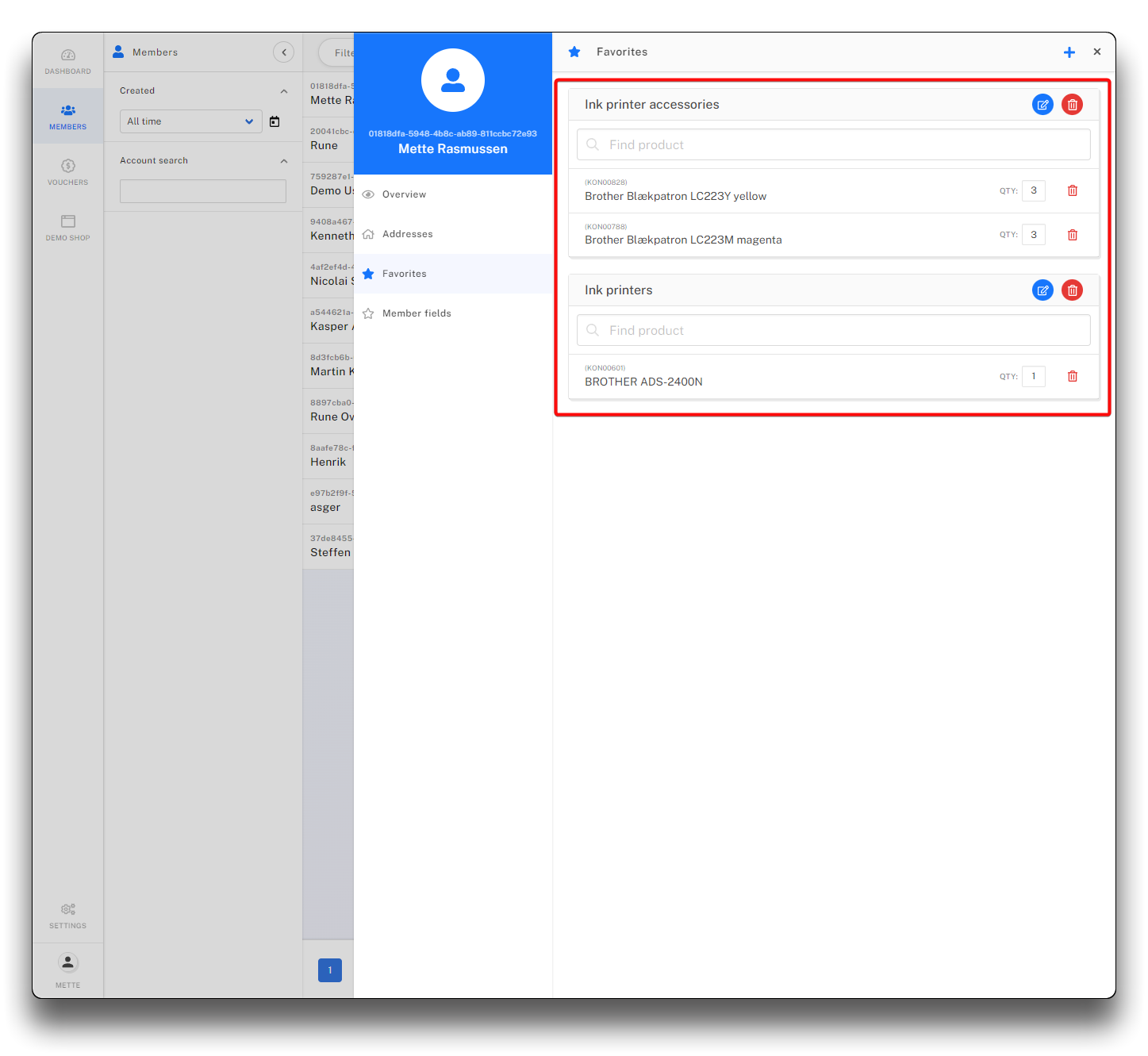
Maintaining wishlist on Member
Member fields
Default no settings are required here. This is a placeholder for special requirements if developed.
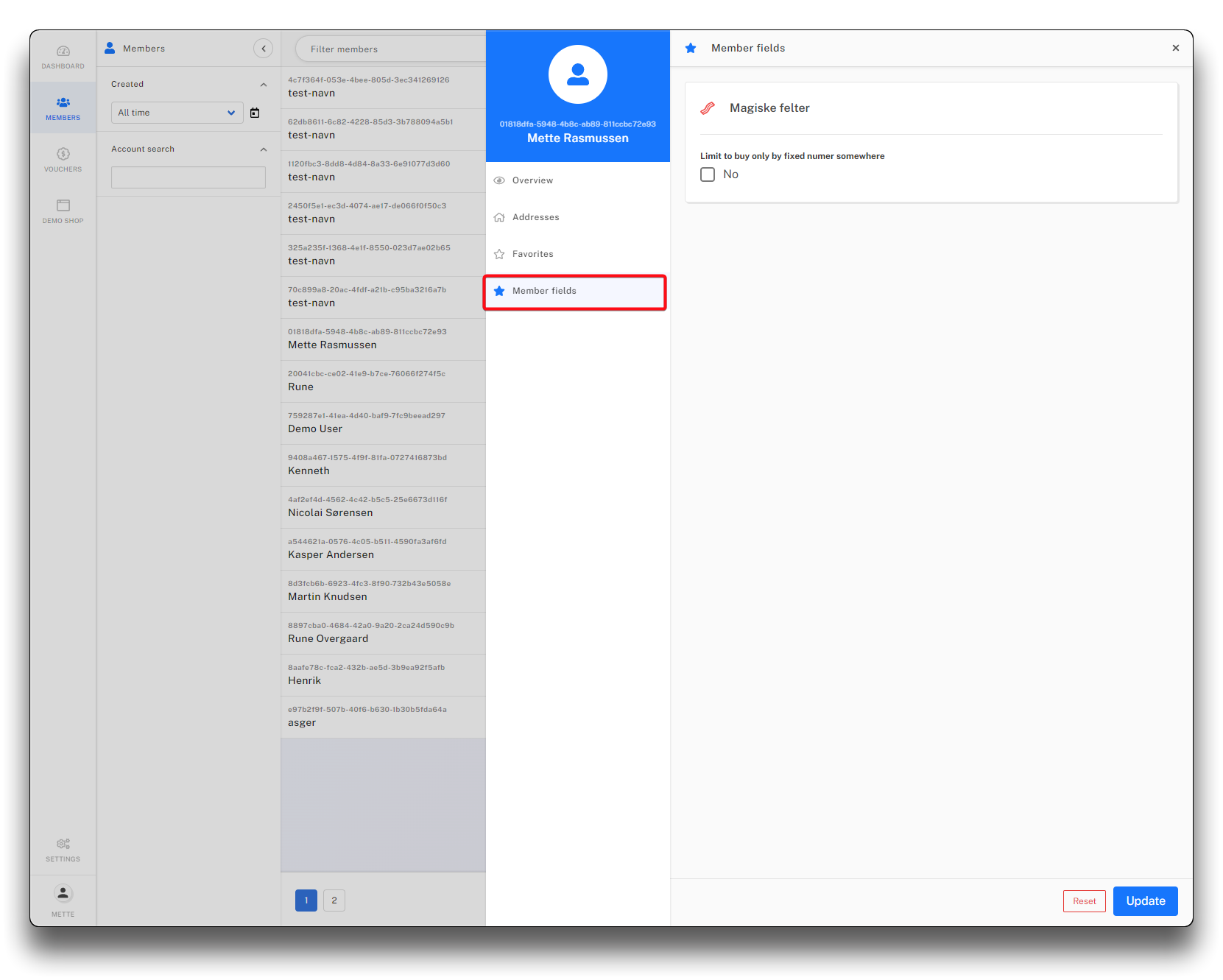
Member fields for special requirements developed