Sidebar filters
Sidebar filters helps you filter on data that you still want in your view, but could benefit from sorting on content or empty/populated, when actively working with product data.
In any view a category hierarchy is always available as a sidebar filter.
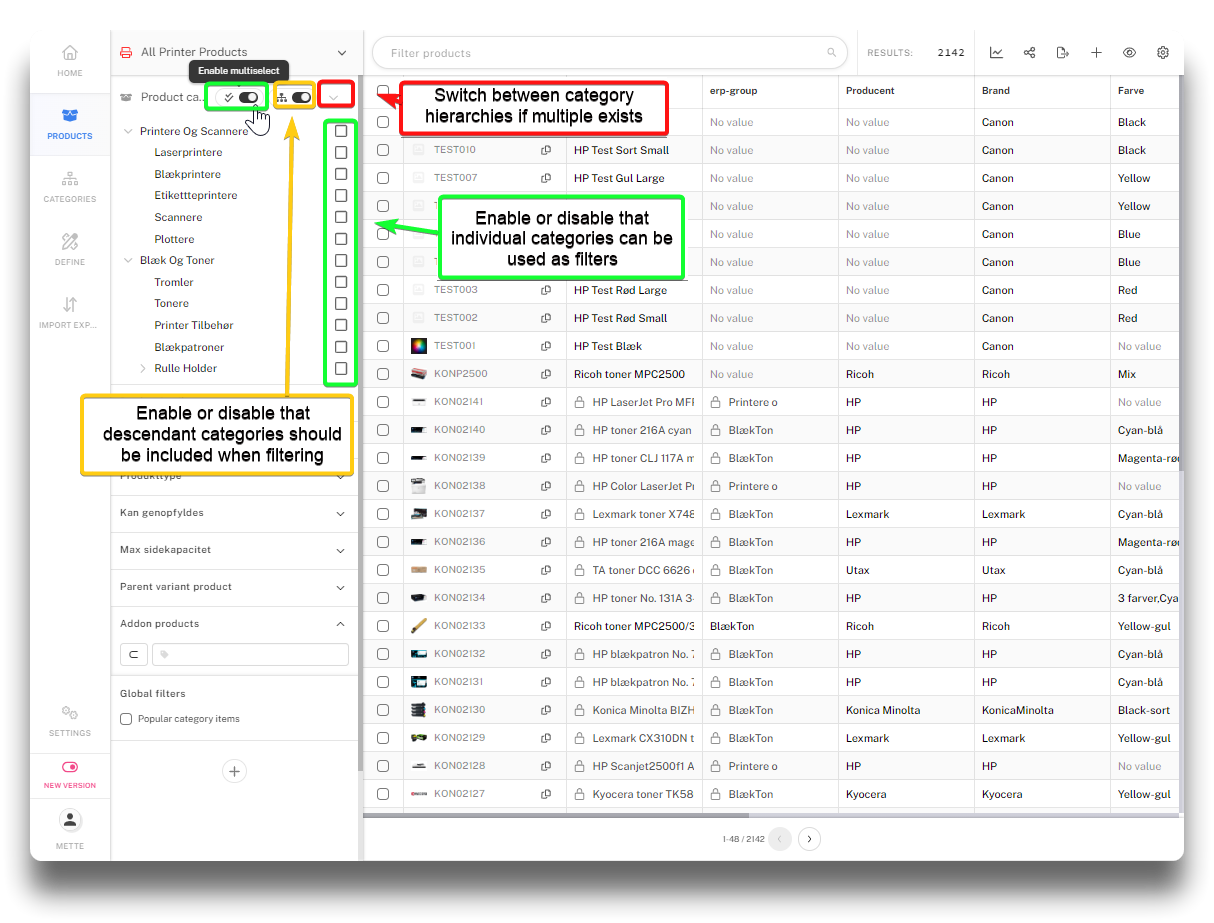
Default category hierarchy filter
Saving sidebar filter to view
Go to "View settings" and open the sidebar filter set. Click "Edit". Tick the attributes that should be sidebar filter options. Click "Done". Click "Save". The chosen attributes are now available as sitebar filters on this view only.
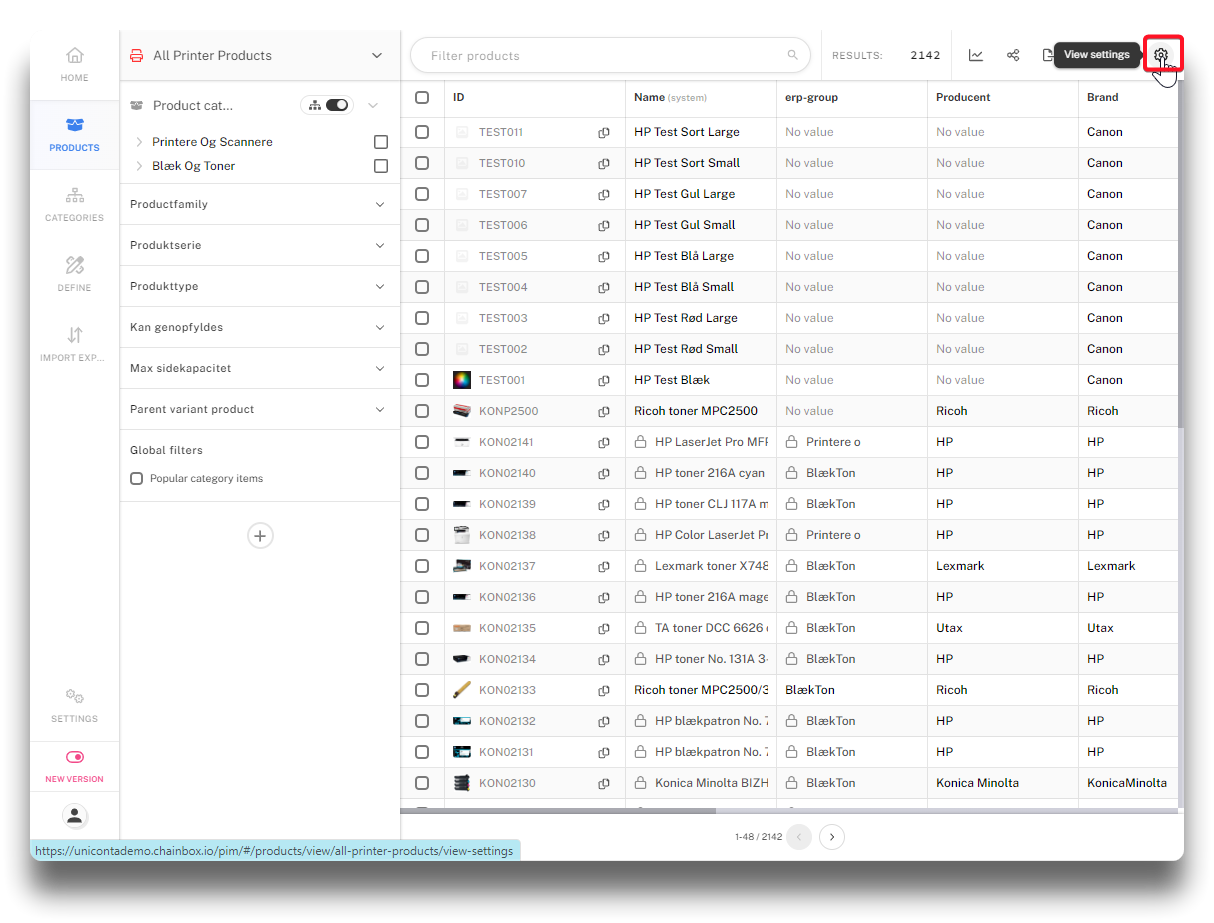
Add sidebar filters - step 1
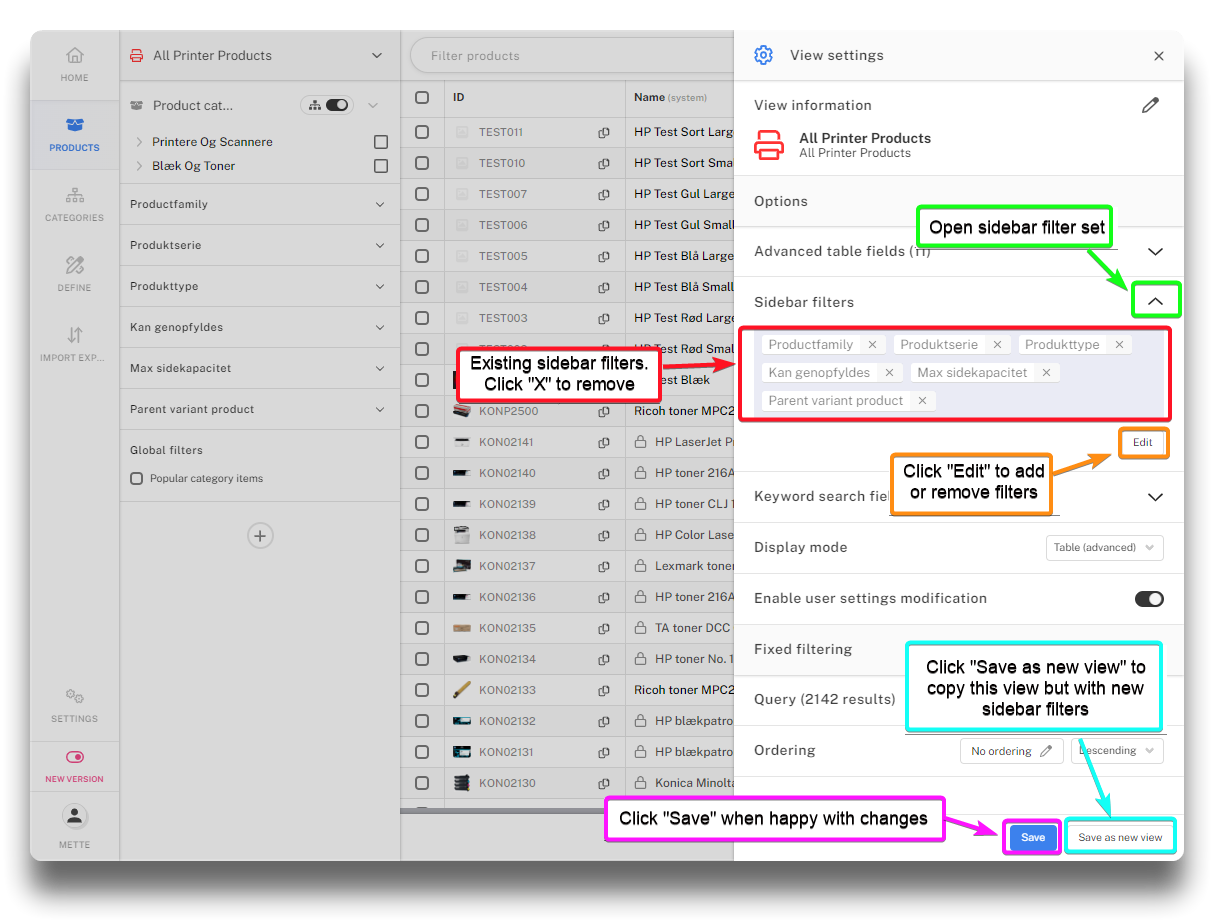
Add sidebar filters - step 2
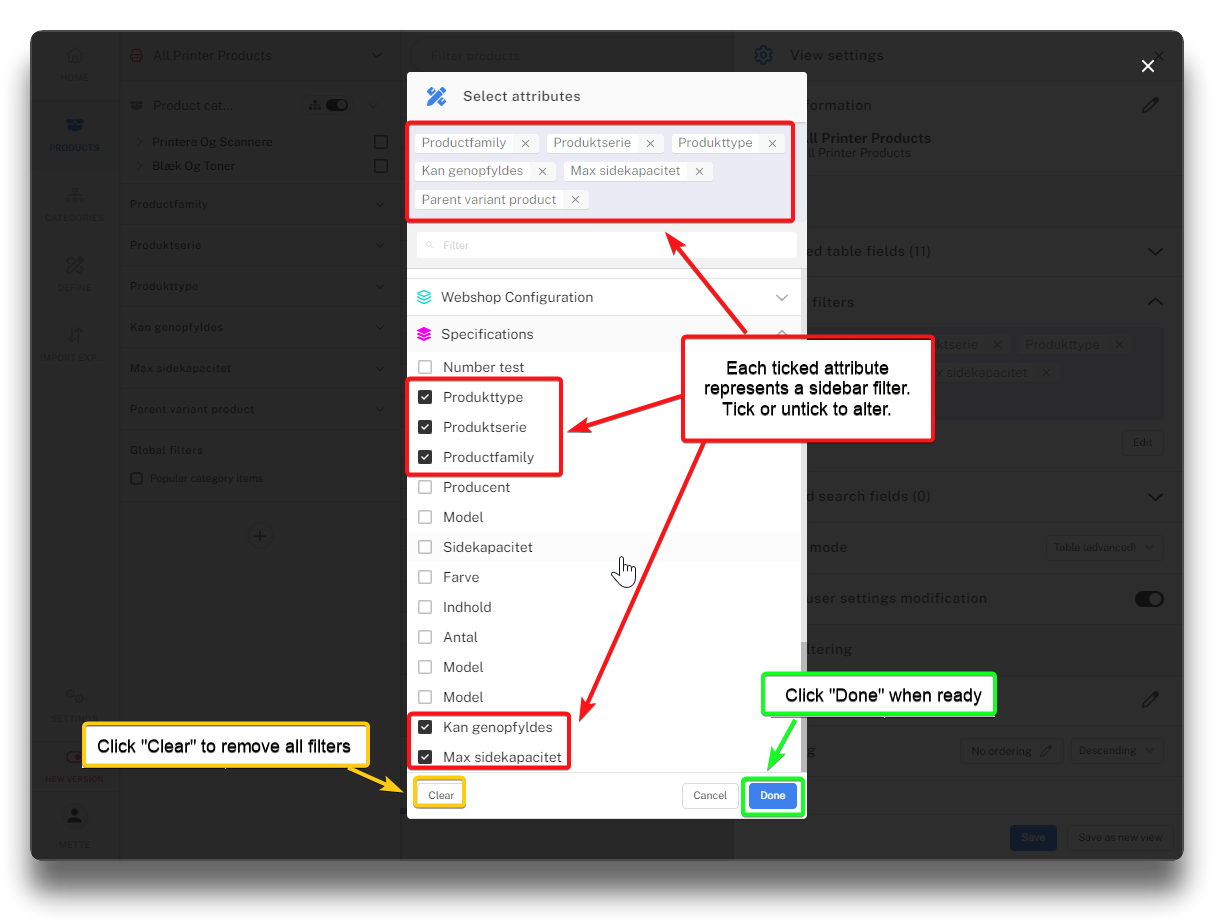
Add sidebar filters - step 3
Temporary sidebar filters
By pressing the "+" a quick-filters can be created that are not saved with the view.
Search out the relevant attribute and click "Done".
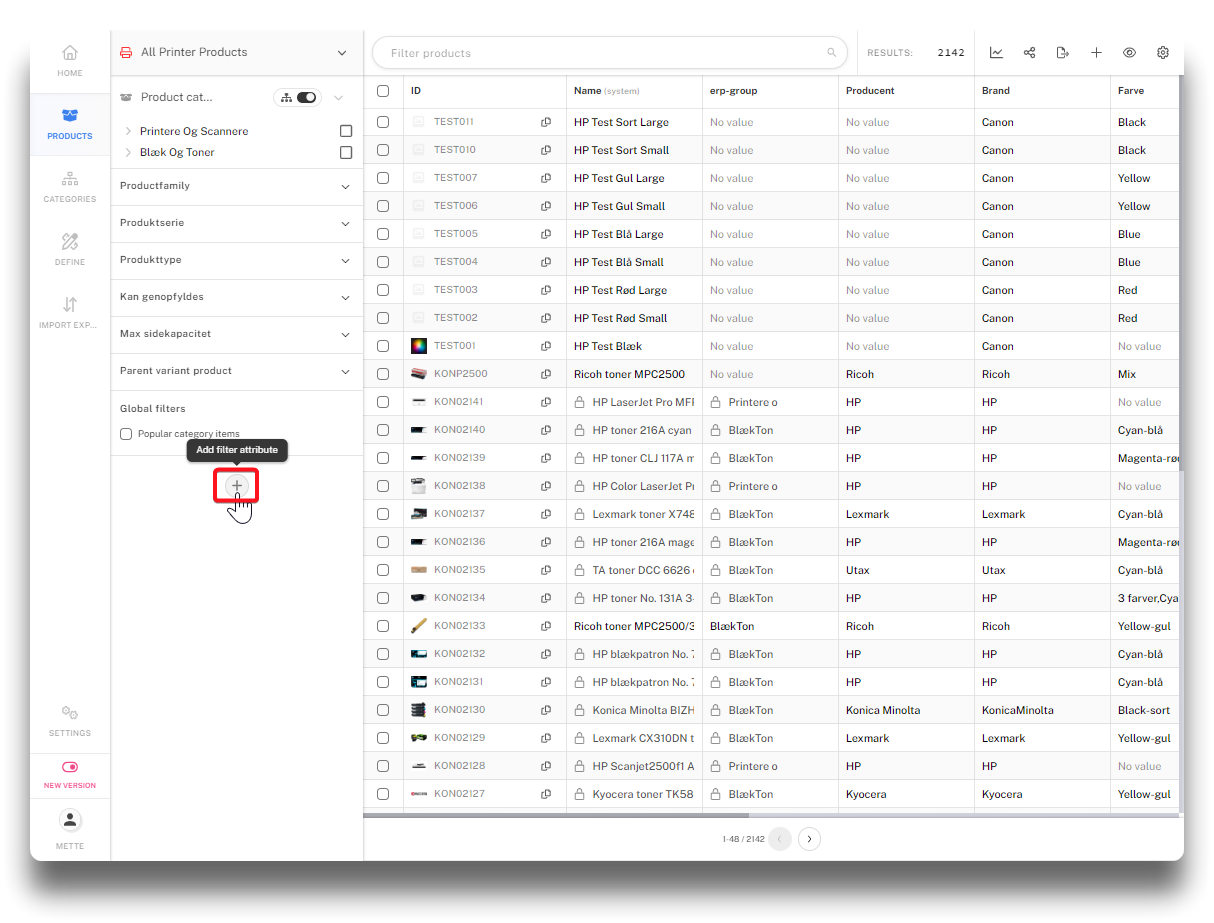
Creating temporary sidebar filter - step 1
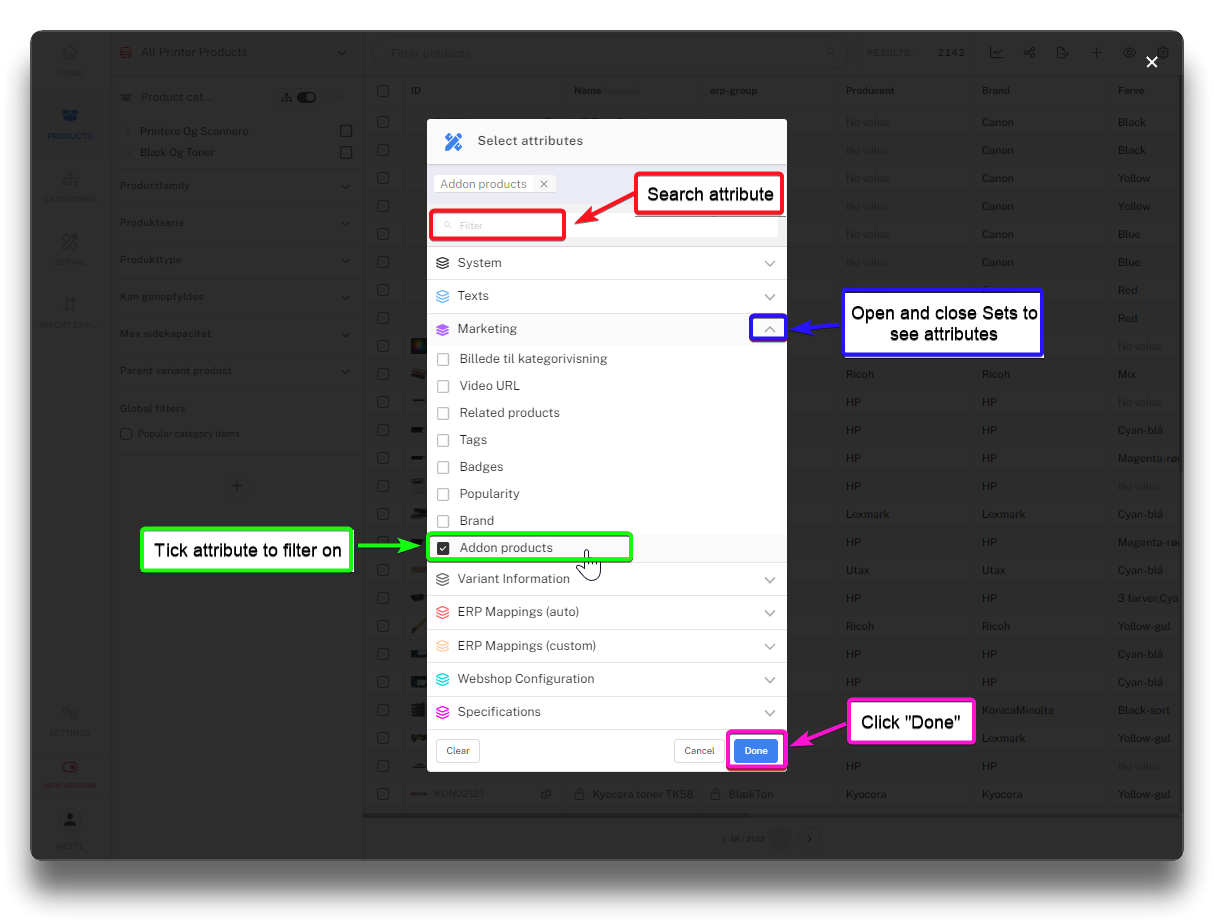
Creating temporary sidebar filter - step 2
Filter is now added ready for use.
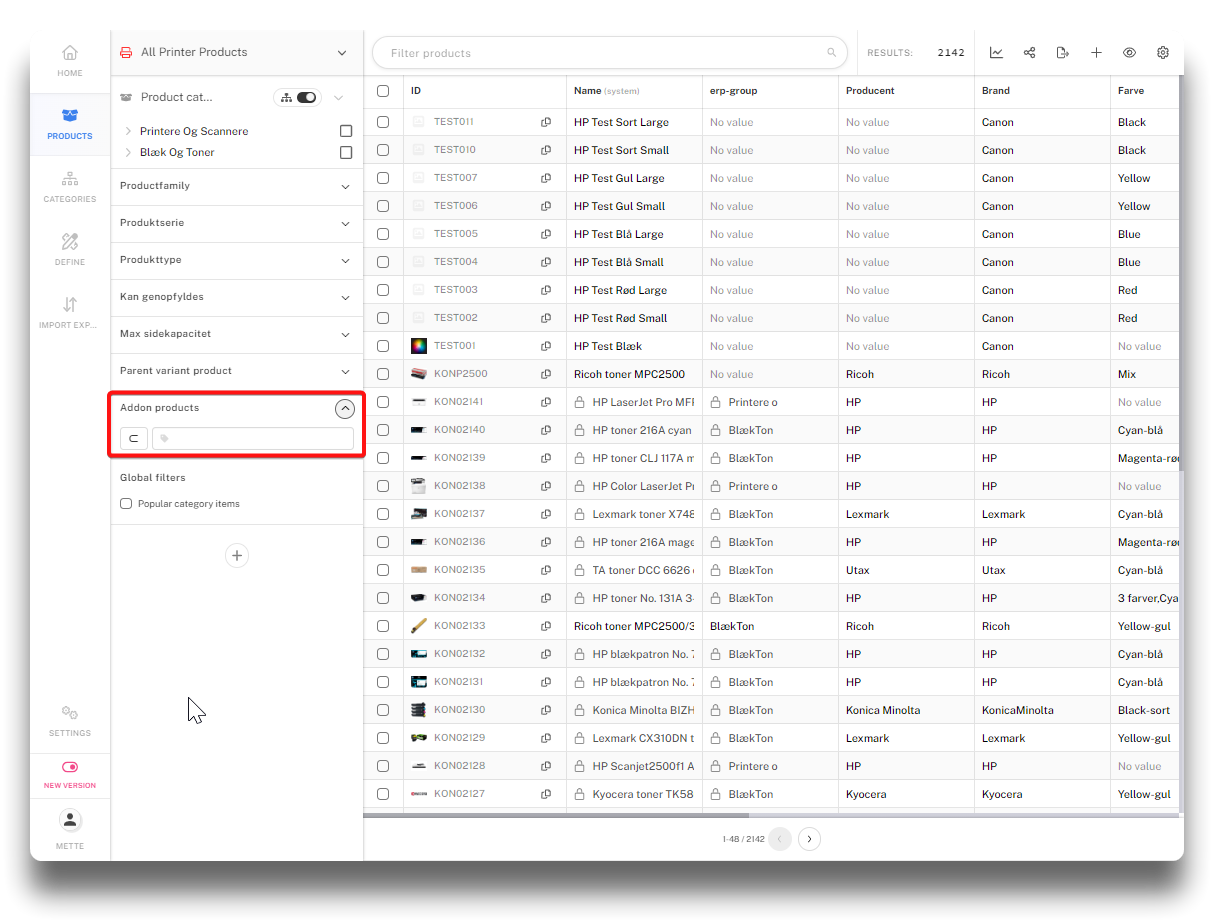
Temporary sidebar filter added
Using sidebar filters
The filter options for each filter depends on the datatype of the attribute. Here follows a few examples:
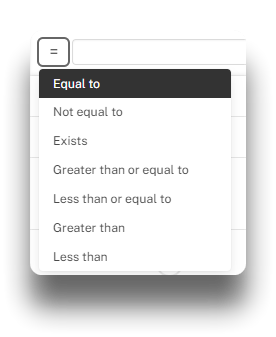
Integer
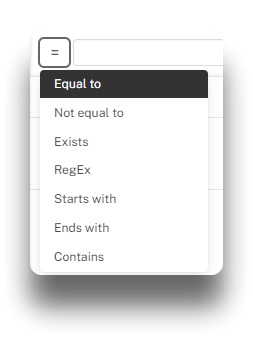
String
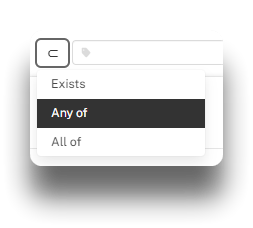
Tag/ENUM
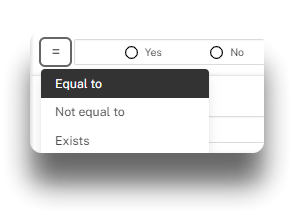
Boolean
Set your filter/filters of choice. Note option to turn statement negativ by pressing the reverse symbol.
If a filter is activated, it will be visible in the blue line above the products. To remove filter click "x" either in the blue top line or above each filter in the sidebar.
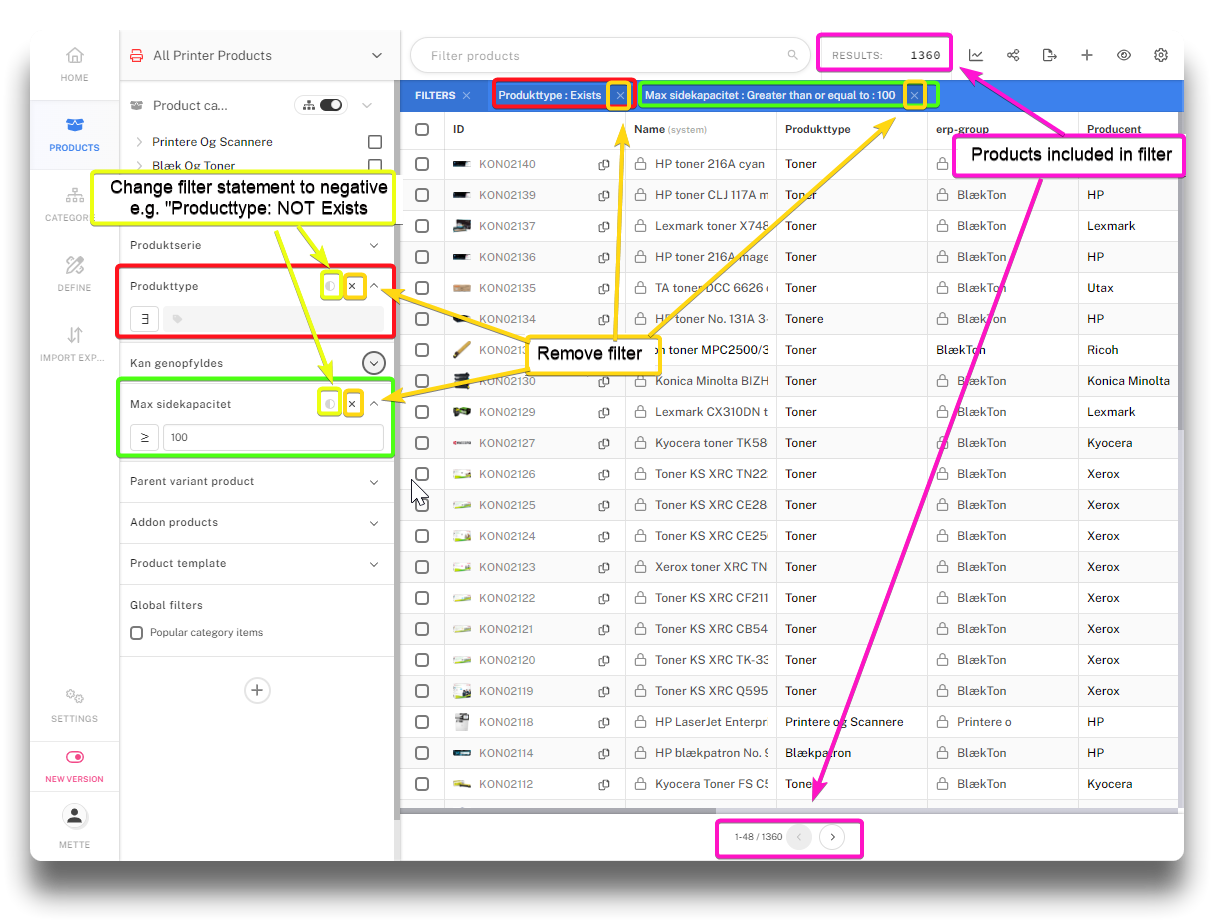
Using sidebar filters in product view
Global filters
Global filters offers the opportunity to create advanced filters containing multiple attributes with a specific interconnection using and/or rules. These filters are not view specific, but will be available on all views. To learn more, please see below page link:
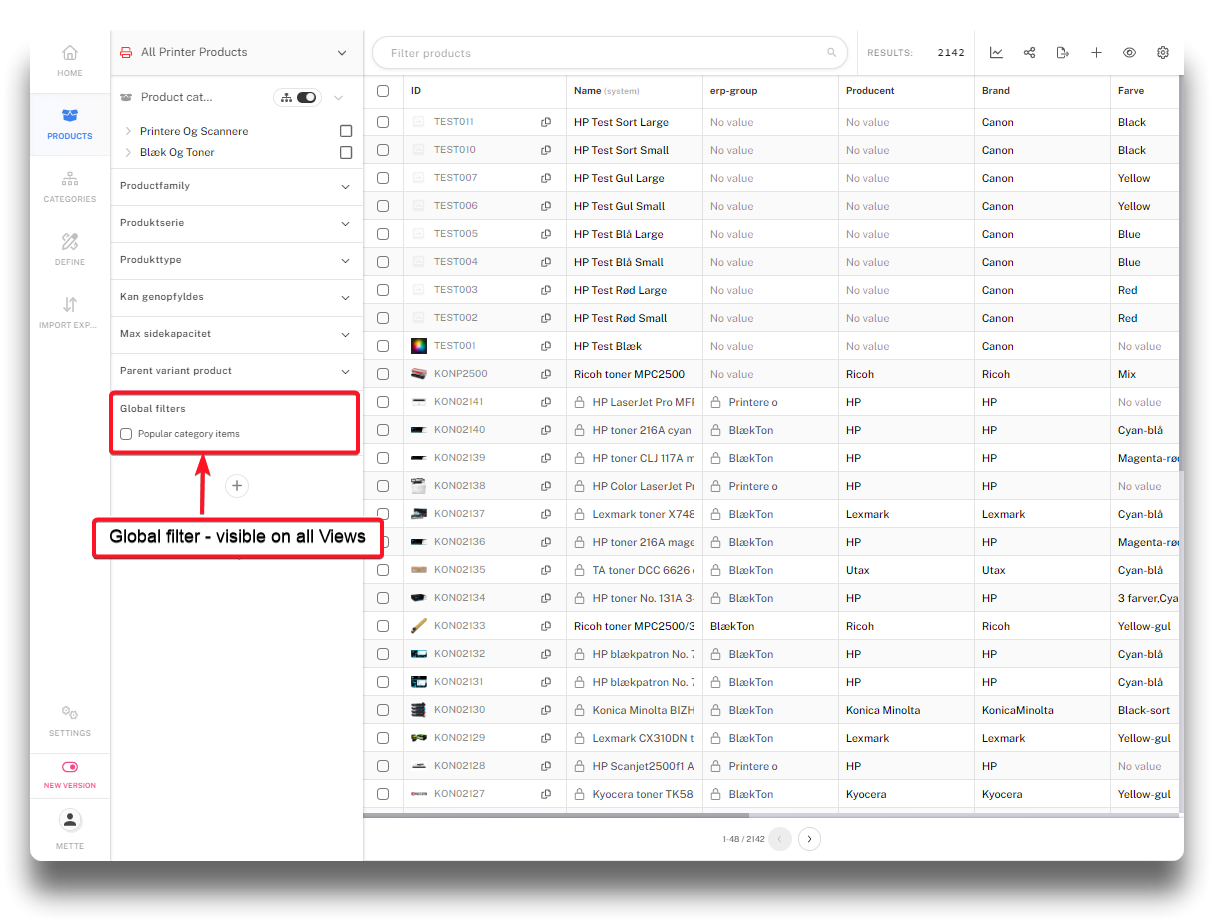
Global filter on view