Product icons setup
Icons can be set on products similar to badges or discount splatters.
Setting up icons attribute
"icons" is by default recognised by the shop, but is not configured in PIM and will need to be done manually.
When setting up the attribute make sure of the following:
code:iconsDatatype:Tag (multiple)
Label, Set and Editor Separator can be setup depending on preference.
Read only and ERP Mappings depending on and if values should be filled by your ERP system.
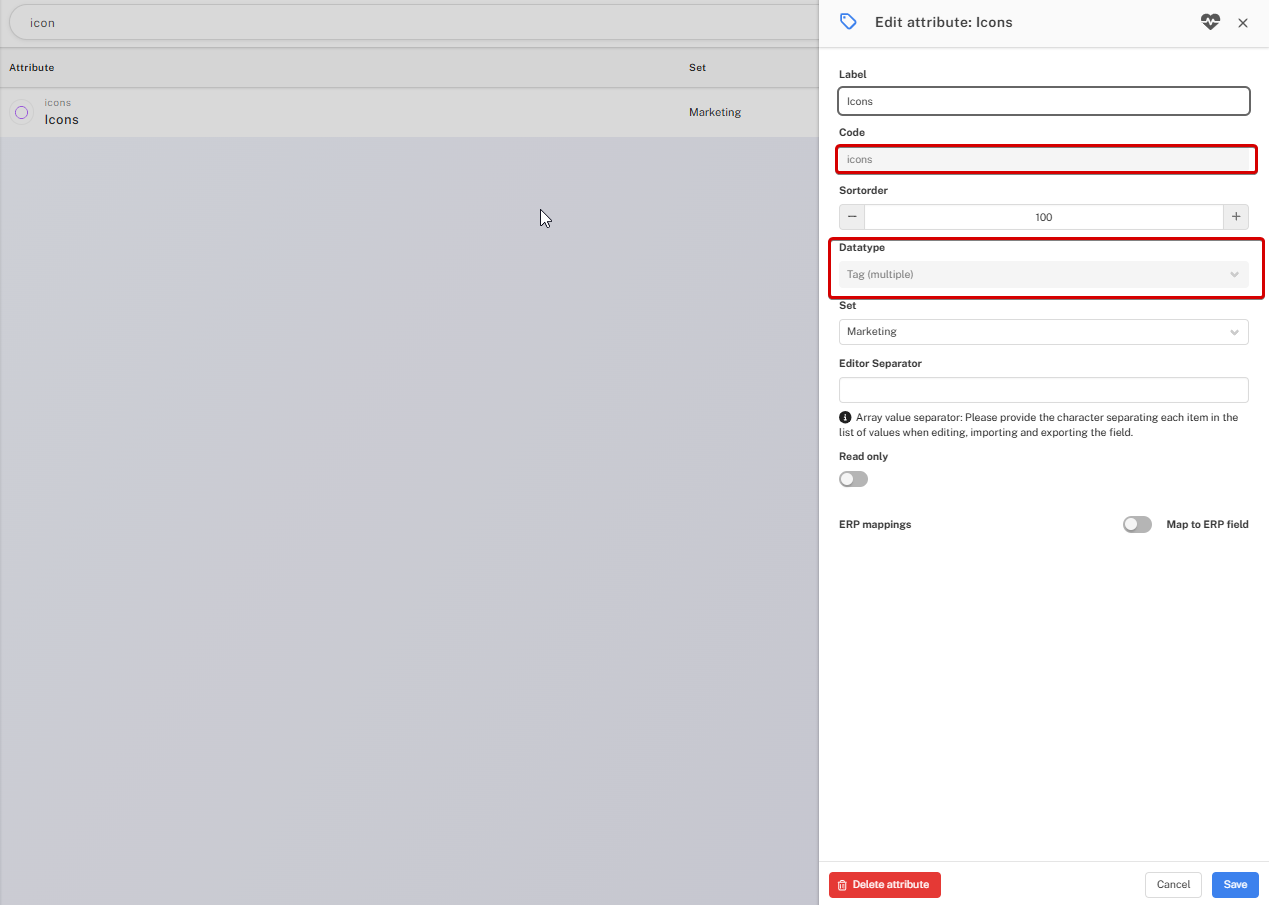
Example of attribute in PIM
For additional information regarding attribute setup, refer to our documentation
Matching an icon image
When you've finished setting up the icon attribute in PIM and filled any products with a value on said attribute, they'll appear empty until they've been stylized.
The "icons" will appear on the product image, similar to badges with their own CSS class.
<div class="icons-overlay">
  <span class="icon icon-{icons-value1}"></span>
  <span class="icon icon-{icons-value2}"></span>
</div>
To setup a specific icon, you'd upload or use an existing image to/from Umbraco under Media and get the image path from the url.
Info
Would look something like this /media/{some-folder-guid}/{file-name}.<jpg/png/svg>
Once you have your image URL -> navigate to scripts and styles and insert the following:
.icons-overlay .icon-{icons-value1} {
    background-image:  url(/media/{some-folder-guid}/{file-name}.<jpg/png/svg>)
}
If done correctly, said image should now show on the product as an icon.
Contact support@chainbox.dk if theres need for assistance in the process.